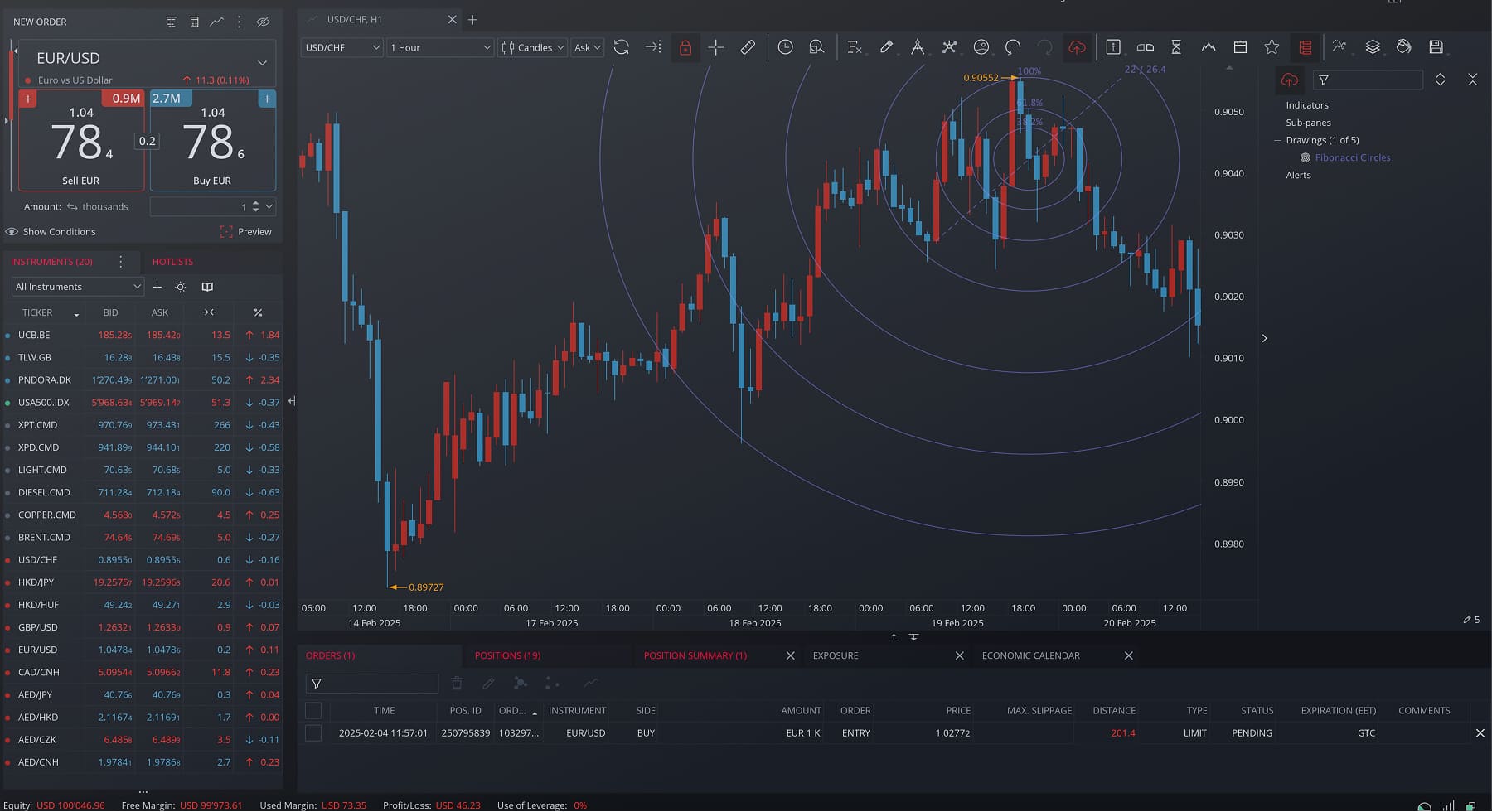
The JForex platform represents a modern approach to electronic trading, offering traders direct access to global financial markets. Whether you are a beginner looking to practice with a forex demo account or an experienced trader seeking advanced tools, understanding the installation and setup process is crucial for getting started. This guide walks through the essential steps to properly install and configure the platform on your system.
Before beginning the installation, ensure that your computer meets the necessary system requirements. The platform is compatible with Windows, Mac, and Linux operating systems. Your computer should have sufficient RAM available, as the application can be configured to use varying amounts of memory depending on your trading needs. By default, the system allocates 768 MB of RAM, though you can adjust this setting in the preferences if your hardware permits.
Additionally, you will need Java bundled with JavaFX installed on your system. This is a prerequisite for running the platform smoothly. Make sure that the directory where you plan to install the application has read and write access permissions, as this is essential for proper operation.
Starting your installation on Windows is relatively straightforward. First, locate the installer file - typically named "JForex-Setup.exe" - in your Downloads folder. Double-click the installer to launch the setup wizard. If Windows User Account Control prompts you, click "Yes" to allow the installation to proceed.
The wizard will guide you through several configuration screens. You will be asked to select your preferred language, review and accept the license agreement, and choose an installation directory. The default location in Program Files works well for most users, but you can specify a custom location if preferred. The installer will also offer to create desktop and Start menu shortcuts for convenient access to the application.
For Linux users, the installation process involves a few terminal commands. After downloading the installer file, open a terminal window and navigate to your download directory using the cd command. Next, make the installer executable by running chmod +x JForex-Installer.sh. Then execute the installer with ./JForex-Installer.sh. The terminal-based installer will guide you through the setup process, asking for your preferred installation directory and whether you wish to create desktop shortcuts.
Once the installation is complete, you will need to configure your Dukascopy account credentials. Launch the application and enter your username and password to log in. This connection links your installed platform to your account, allowing you to access live market data and execute trades.
To familiarize yourself with the platform before using real capital, it is advisable to open a forex demo account. A demo account provides you with virtual funds to practice trading strategies without any financial risk. This approach allows you to become comfortable with the interface, test your strategies, and understand how different order types and risk management tools function.
The JForex workspace is divided into several functional areas, each designed for specific trading tasks. The market overview displays available instruments, current prices, and bid-ask spreads. The trading panel allows you to place market orders, set pending orders, and adjust your positions. The position report shows your current exposure and profit/loss information for each trade.
The News section keeps you informed about market developments, while the economic calendar helps you track important economic events that may impact currency movements. Advanced charting capabilities are available with multiple timeframes and customizable technical indicators for thorough price analysis.
Beyond the basic installation, the platform offers numerous configuration possibilities. You can customize your workspace layout by arranging windows according to your preferences. The preferences menu allows you to adjust display settings, notification preferences, and memory allocation limits.
For traders interested in automated strategies, the platform includes an integrated development environment where you can write, compile, and test trading algorithms. Visual JForex provides a user-friendly interface for building automated trading strategies without requiring advanced programming knowledge.
If you encounter problems during installation, the most common cause is insufficient file permissions. Running the installer as an administrator on Windows or using sudo on Linux typically resolves these issues. Should you experience corrupted download files that prevent the installer from running, delete the file and download a fresh copy from the official website.
If installation difficulties persist, the customer support team at Dukascopy is available to provide direct technical assistance. They can help resolve compatibility issues, configuration problems, or any other challenges you may encounter during setup.
Installing and setting up the JForex platform is a manageable process that prepares you for professional-grade trading. By following these steps carefully - from meeting system requirements through initial configuration and account setup - you will have a fully functional trading environment. Remember to utilize a forex demo account to practice before committing real capital, and do not hesitate to reach out for support if technical issues arise. With the platform properly installed and configured, you are ready to explore the diverse trading opportunities available in today's financial markets.
